Help · Guide 1 of 8
Find your way around
The menu, your units, and the steps every unit goes through.
3 minutes to read
Watch it
Step 1: Your units
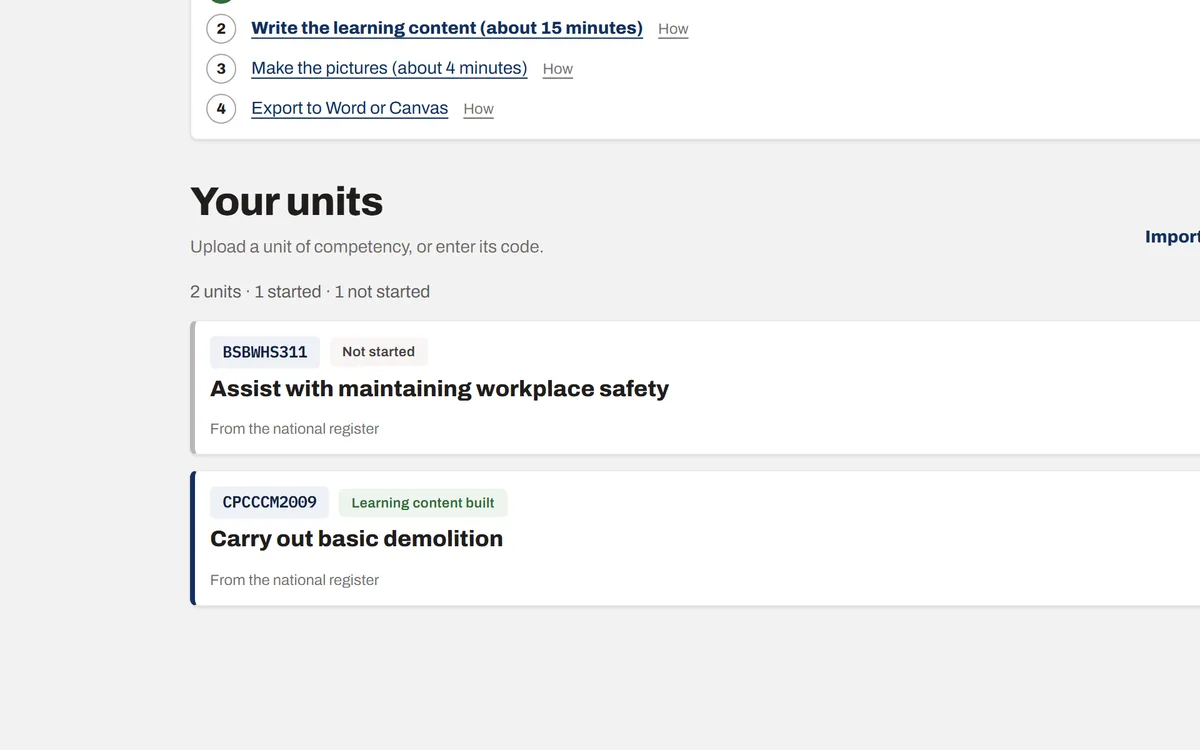
After you sign in you land on Units. Every unit you or your team have built is listed here. Click a unit to open it.
Step 2: The menu at the top
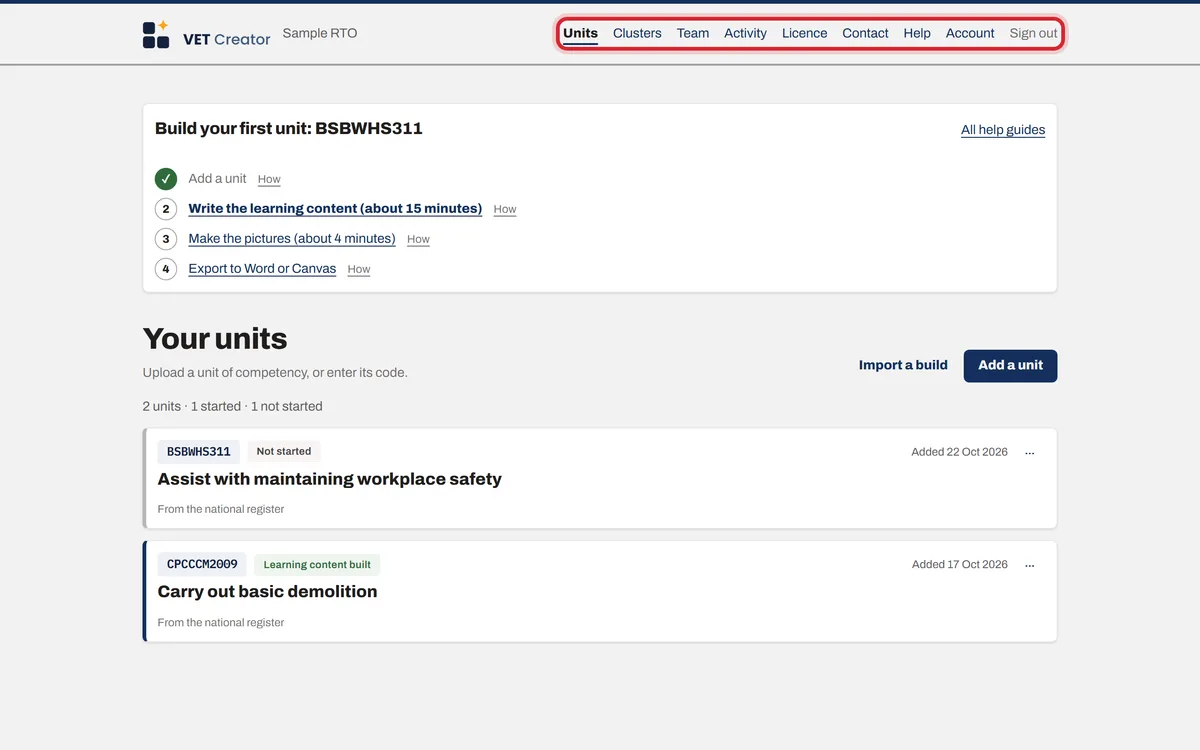
Units is your list. Team is where you invite people. Licence is your plan and billing (owners only). Account is your own login. Contact reaches us. Help brings you back here.
Step 3: The steps of a unit
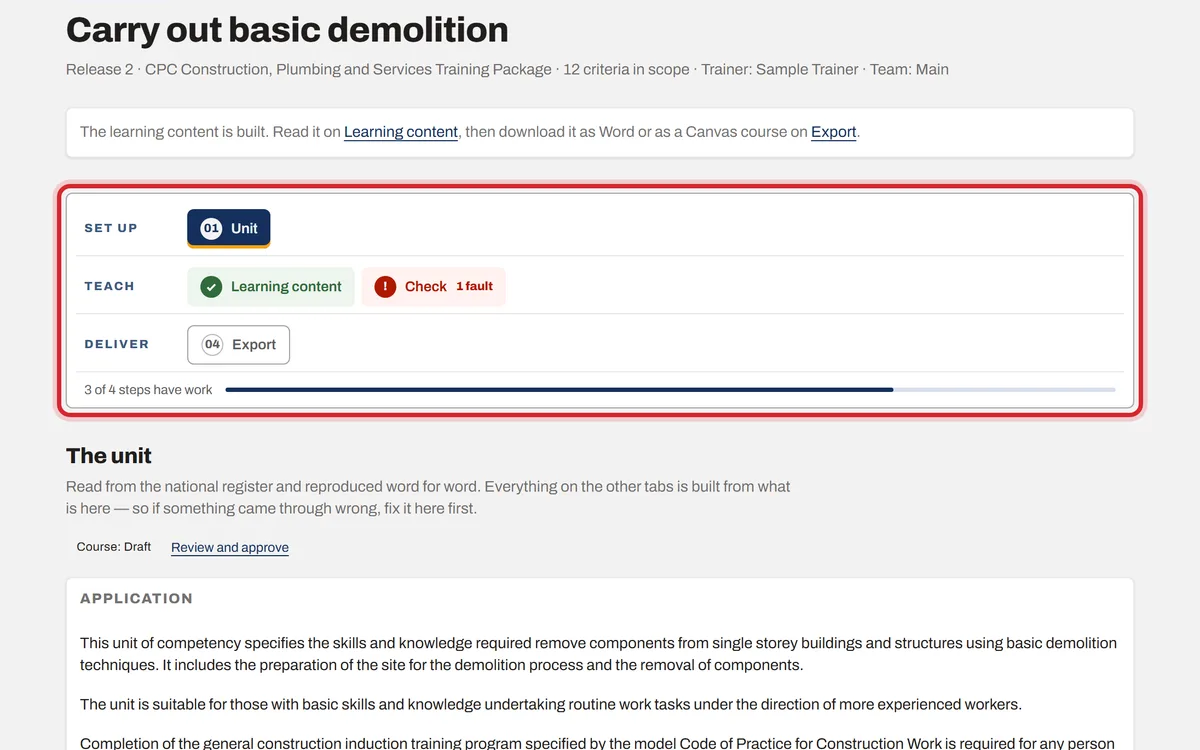
Every unit has ten steps, in four groups: Set up, Teach, Assess and Prove. On a learning content licence there are four: Unit, Learning content, Check and Export. Work from left to right. A green tick means the step has work in it. A step shows red, with what is left (for example Check, 1 fault), while something there still needs fixing. Mapping turns green when everything is covered and red while something is missing.
Step 4: How covered is the unit
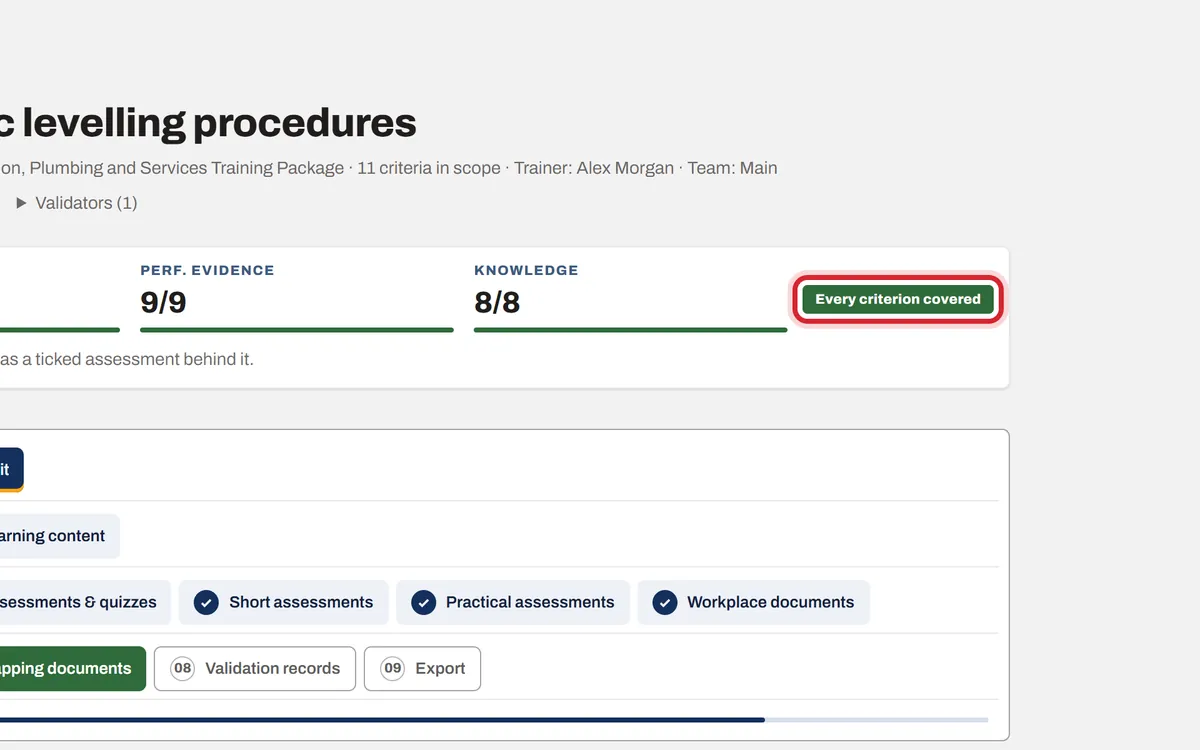
The bar at the top counts the criteria, performance evidence and knowledge evidence that have an assessment behind them. It turns green and says "Every criterion covered" when nothing is missing, and orange until then.