Help · Guide 8 of 8
Export and print for students
Download the documents, print the student copies, load the course into Canvas.
5 minutes
Watch it
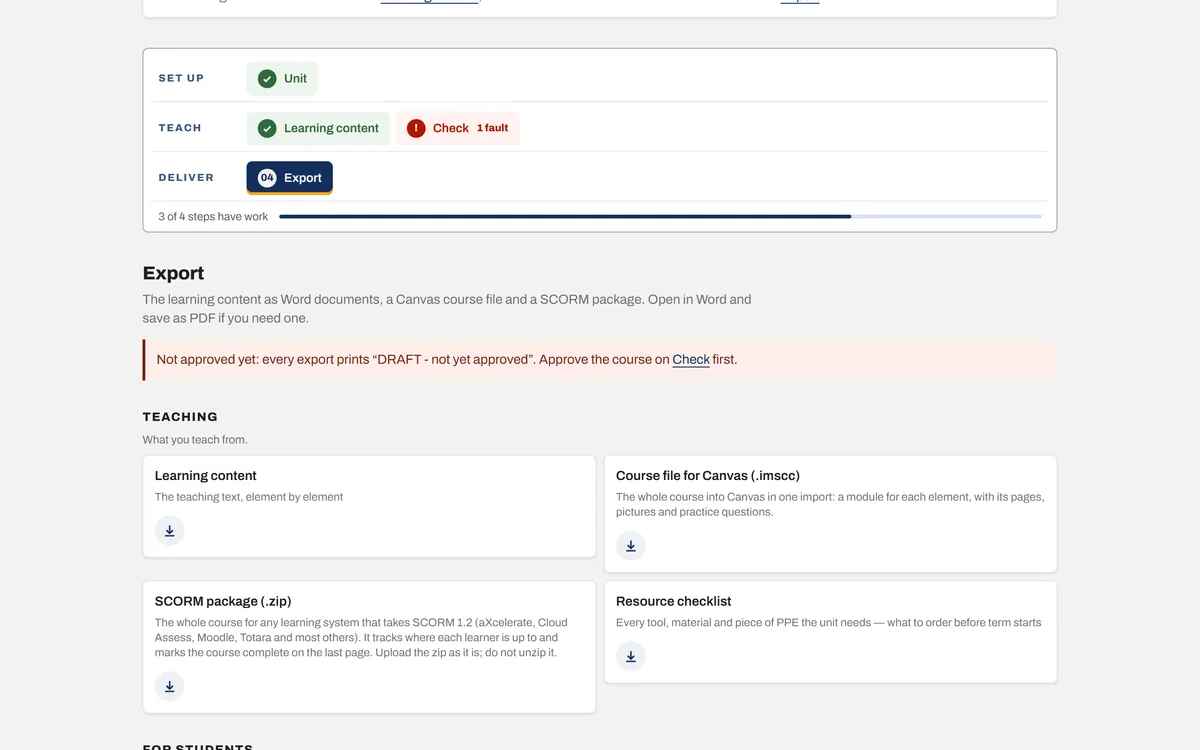
Step 1: Open Export
Step 10 lists every document the unit makes (step 04 on a learning content licence). An approved course prints its version, approver and date; one not yet approved prints DRAFT. Download one file at a time; on the full product, Everything, as one zip gets the lot.
Step 2: What to hand to students
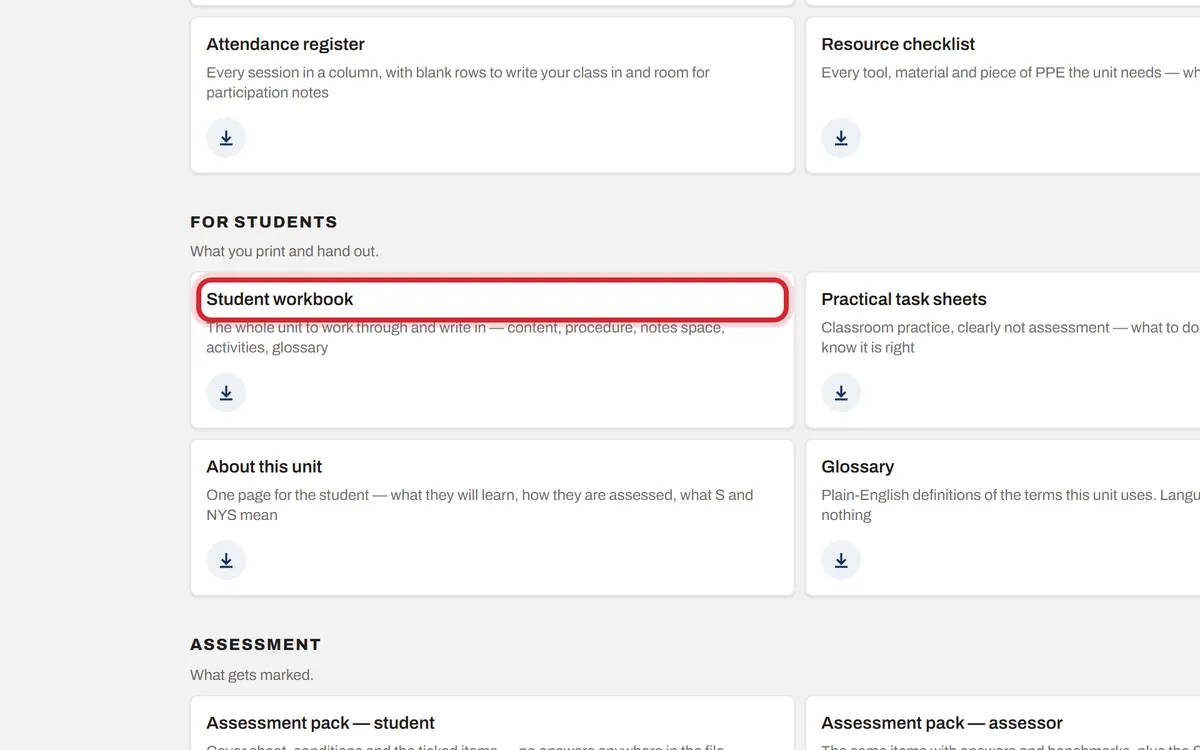
Under For students: the Student workbook and the Practical task sheets. Under Assessment: Assessment pack — student, and a Cover sheet for each submission.
Step 3: Print it
Open the file in Word, check it, then File, Print. To make a PDF, File, Save As, and choose PDF.
Step 4: Canvas, Moodle or another learning system
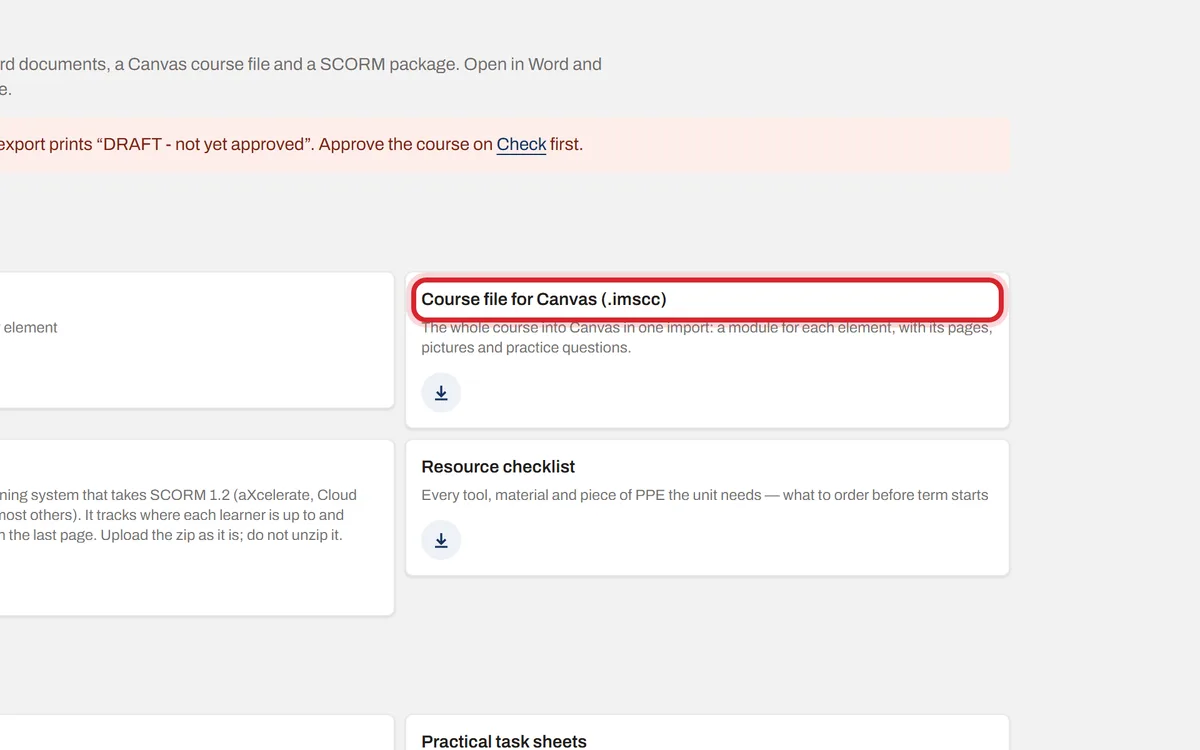
Under Teaching, Course file for Canvas downloads the whole course for Canvas in one import, with the pictures and a quiz that marks itself. For any other learning system (aXcelerate, Cloud Assess, Moodle, Totara), download the SCORM package and upload the zip as it is.